Showing posts with label Toad. Show all posts

In this how-to guide, you will learn how to change the password in Toad for Oracle. Examples are below to change the password for the current Oracle user and any other user.
Steps to Change Password of Current User in Toad for Oracle

  1. In Toad for Oracle, connect to the database then click on the menu Session > Change Password.
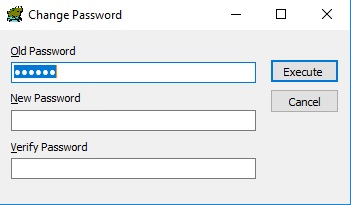
  2. A dialog window open as shown in the below image. Specify the new password in the New Password field and re-type in the Verify Password field and click on the Execute button.
Change Oracle user password using Toad

Now the password will be changed for the current user.

Steps to Change Password of Any Other User Using Toad for Oracle

  1. In Toad for Oracle, click on the menu Database > Schema Browser.
  2. The Schema Browser window will open. Then click on the User tab.
  3. In the User tab, select the user for which you want to change the password.
  4. Then do the right-click on that user and from the shortcut menu choose Alter.
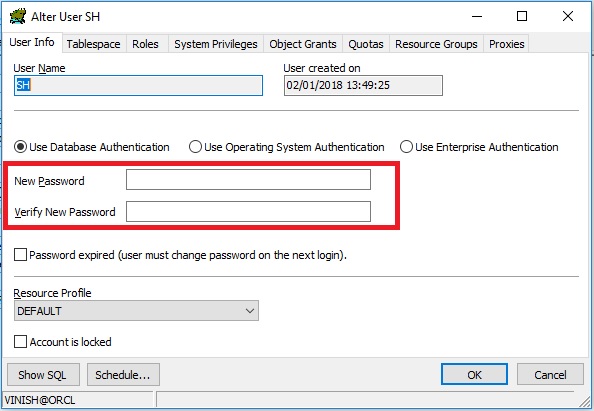
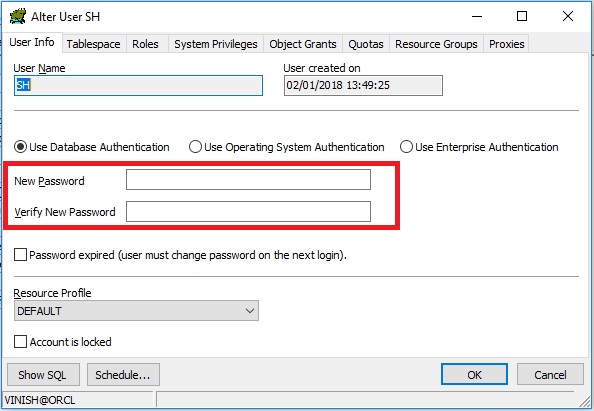
  5. The Alter User window will open as shown below. Then specify the New Password and click on the OK button to apply.
See also:

In this how-to guide, you will learn how to kill a session in Toad for Oracle.

To kill the session in Toad follow these steps:

  1. In Toad for Oracle, connect to the database with the user having ALTER SYSTEM KILL SESSION privilege or DBA privilege.
  2. After connecting to the Oracle database, click on the menu Database > Monitor > Session Browser.
  3. The Session Browser window will open, then select the session and do the right click on it and choose Kill Sessions option from the shortcut menu as shown in the below image.
Kill session in the Toad for Oracle example

The selected session will be killed immediately.

See also:


To generate HTML reports in Toad for Oracle follow these steps:

Generate HTML Report in Toad

  1. In Toad for Oracle, open SQL Editor by clicking on the Menu Database > SQL Editor.
  2. Then type your query in the editor for which you want to generate HTML report and press Ctrl+Enter or F9 to execute.
  3. You will get the result into the grid in Toad.
  4. Then do the right click on the grid and select Export Dataset option.
  5. Choose HTML Table from the Export Format drop-down list.
  6. In output choose File and type the filename in the File field.
  7. Then click on the OK button to generate the report as shown below:
Generate HTML report in Toad options

Output

HTML report output generated though Toad for Oracle.


You can write queries using SQL Editor in Toad for Oracle. Follow these steps:

Write Query in Toad for Oracle

  1. Open Toad and connect to the Oracle database.
  2. Then click on the menu Database > Editor.
  3. An SQL Editor window will open.
  4. Here you can write the SQL queries as you write in SQL*Plus.
  5. After completing the query press Ctrl+Enter or F9 to execute.
You can also format the SQL query in the Editor by pressing the Shift+Ctrl+F key combination or by clicking on the menu Edit > Format Code. Below is an example of a formatted SQL query:

  SELECT EMPLOYEE_ID,
         FIRST_NAME,
         LAST_NAME,
         EMAIL,
         PHONE_NUMBER,
         HIRE_DATE,
         JOB_ID,
         SALARY,
         COMMISSION_PCT,
         MANAGER_ID,
         DEPARTMENT_ID
    FROM hr.employees
   WHERE department_id = 90 AND manager_id = 100
ORDER BY employee_id;

Create SQL queries in Toad for Oracle

Powered by Blogger.